
Call Us: 1300 551 778
Welcome to your Dragon Professional Anywhere onboarding page, developed exclusively for MedHealth users by VoiceX — your authorised Australian provider of speech recognition and workflow solutions.
This page provides detailed step-by-step instructions to help you install and set up:
You’ll also find quick links to downloadable user guides, cheat sheets, and essential IT instructions including firewall and proxy requirements, URL whitelisting, and system specifications — all tailored to the MedHealth environment.
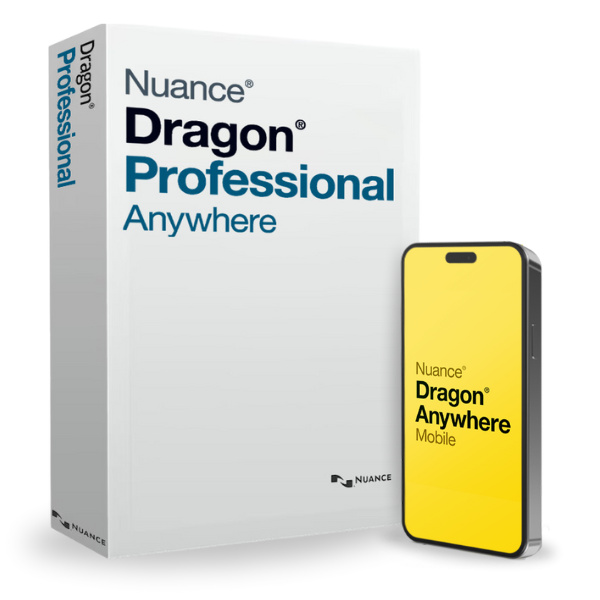
Follow these steps to install Dragon Professional Anywhere on any Windows computer that you need to work on.
Important : Wait for your Welcome Kit email
You will receive an email from VoiceX with the subject line “Welcome to Dragon Professional Anywhere”.
Do not attempt to install the software until you have received this email — it contains your unique login credentials and secure download link.
If you haven’t received the email, check your spam folder or contact our support team
This email will contain:
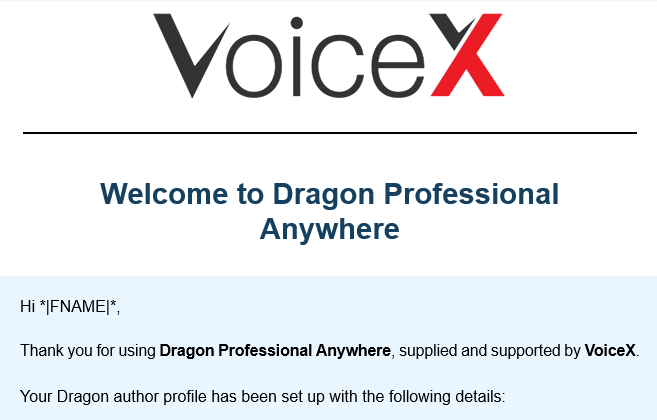
Click the download link in your email and save the installer to your desktop or Downloads folder.
Your Dragon software will be installed on your computer via the MedHealth IT Team. Please contact your MedHealth Administrator for any assistance.
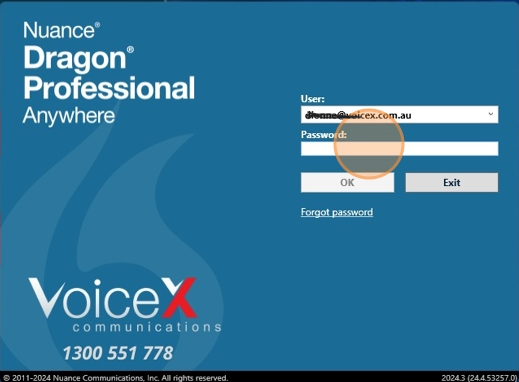
Once installed, launch Dragon and log in using the credentials provided in your Welcome Kit.
Your cloud profile will sync automatically on first login.
Set up mobile dictation on your iOS or Android device.
Install "Dragon Anywhere AU" from your device’s app store:


After installation, scan this QR code with your phone’s camera:

If you're viewing this page on your phone, tap here to launch setup directly
Or, tap the yellow Nuance bar on the login screen 5 times, then click Update and paste the URL from your Welcome Kit.
If prompted, choose "Dragon Anywhere Mobile" as the app. Tap ‘OK’ to open the link, then tap ‘Accept’ to confirm configuration. Use your credentials to log in.
Note: Please note that some subscriptions may not include the Dragon Anywhere Mobile App. Please check your subscription agreement or welcome kit for details.
See Dragon Professional Anywhere and Mobile App in action.
VoiceX recommends the following minimum specifications for Dragon Professional Anywhere / Dragon Legal Anywhere:
Dragon Professional Anywhere / Legal Anywhere is a secure, cloud-based speech recognition solution. To ensure proper connectivity, please allow access to the following domains and ports:
| URL Address | Ports | Purpose |
|---|---|---|
| *.nuance.com | 80 | Software distribution, installation & training content |
| *.ordiginal.com | 443 | Secure speech recognition data channel |
| *.nuancehdp.com | 443 | Secure speech recognition data channel |
If you are experiencing connectivity issues, please contact your IT administrator to ensure access is not being blocked by firewalls, proxies, or content filters.