
Call Us: 1300 551 778
Can I use SpeechLive with a foot control in a Remote Desktop / Citrix / Virtual environment?
Yes, both authors and typists can access SpeechLive via Remote Desktop/RDP, Citrix, Terminal Server etc and use dictation and transcription hardware in the remote session such as Philips transcription foot controls, SpeechMikes and DPM Dictation Recorders.
To enable the use of SpeechLive in a Remote Desktop Environment you will need to apply for some extensions on both the local and remote computers.
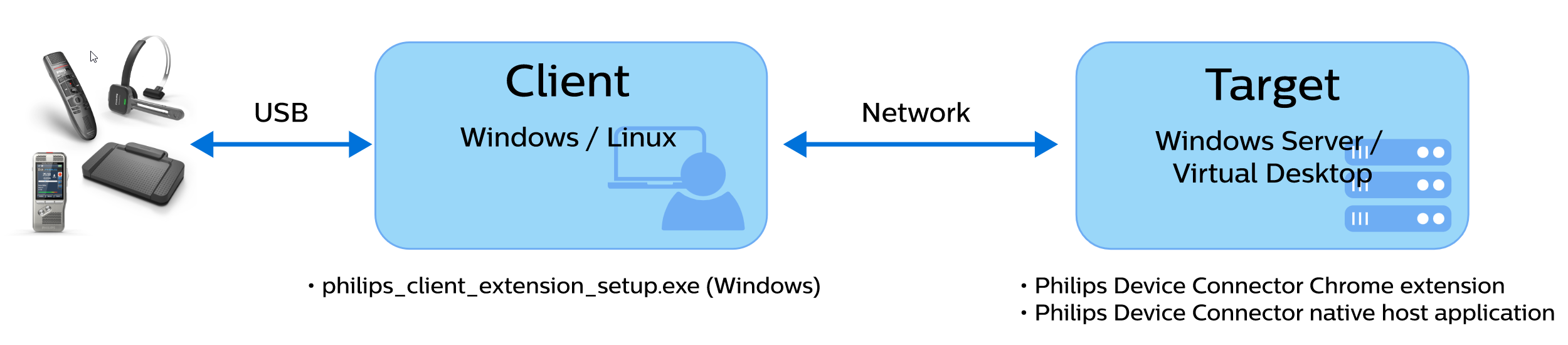
LOCAL PC (Windows Client):
NB: If you wish to use SpeechLive on your local PC in addition to your remote desktop, you will need to add the Philips Device Connector Chrome extension in your local Google Chrome or Edge browser.
To use Philips Device Connector, you need to install two components on the REMOTE COMPUTER
The following steps cover the installation of both components:
Your foot control should now work.
To ensure audio is also played on your local computer you will need to ensure that your Remote Desktop App is set to pass through audio. You can do this by;
Please note that you may need administrator credentials to make these changes in your system. If this is the case please contact your IT team or administrator.
If you require any additional assistance please contact the SpeechLive Support Team at VoiceX on 1300 551 778